
Azure Policy is excellent at telling you what is compliant and what isn’t, but in real environments the next step is usually the hard part: who fixes it, how, and based on what rules? Built-in remediation tasks work well when the fix is purely “deploy or modify an Azure resource configuration” (for example, enable diagnostics, deploy an extension, or enforce a setting).
But there are many governance scenarios where remediation either isn’t possible or shouldn’t happen automatically. Typical examples include anything that needs business context (mapping tags to cost centers), requires coordination (multiple teams involved), needs approvals, or depends on external systems (ITSM, CMDB, finance tooling). In those cases, Azure Policy still gives you huge value, just this time not as the “fixer,” but as the trigger.
The key idea is to use policy compliance changes as a signal. When a resource becomes noncompliant, Policy Insights can emit an event through Event Grid. That event can start almost any workflow you like: an Azure Automation runbook, an Azure Function, a Logic App, or an ITSM process. Instead of chasing compliance reports manually, you turn compliance into an event-driven pipeline that either remediates safely or escalates when it can’t.
I already described a very similar scenario in my previous article Azure Policy Compliance Alerts and how to create alerts based on Policy Compliance. The event delivery backbone (Policy Insights → Event Grid → handler) is the same pattern. I won’t repeat every foundational step here. If you want the deeper explanation of the event flow and how compliance events show up, start with this article and then come back.
Example Scenario
In this article we’ll use an intentionally simple and common problem: resource groups missing the CostCenter tag.
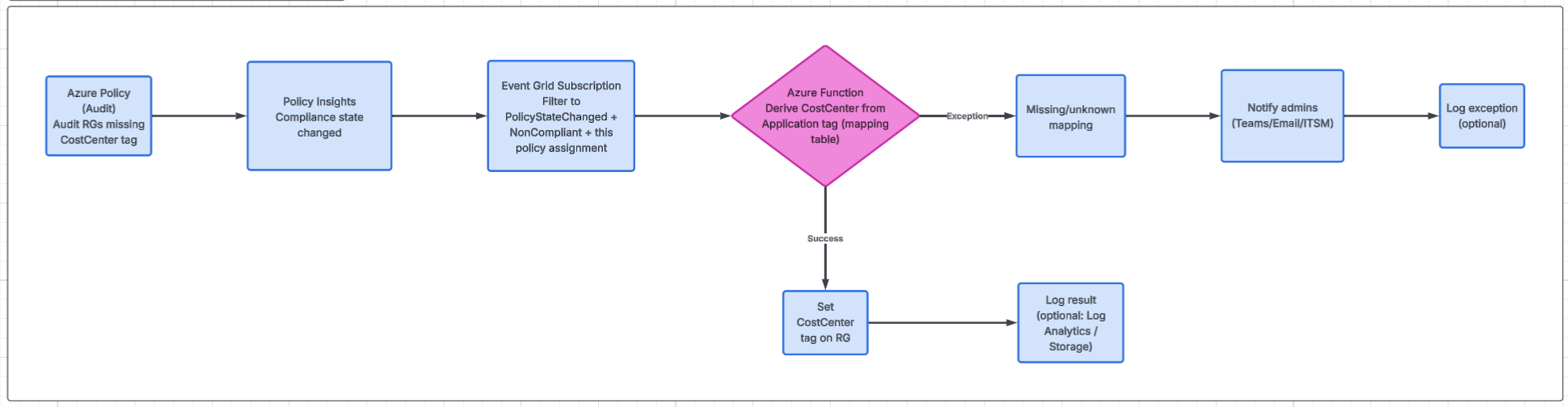
The Azure Policy is straightforward. It will audit any resource group that doesn’t have the tag. The automation is where the “real life” logic happens: when a resource group is flagged as noncompliant, the workflow will try to derive CostCenter from another tag (for example Application). If the mapping exists, the runbook sets the tag. If the mapping doesn’t exist (or the source tag is missing), the workflow won’t guess, it will notify an administrator so the platform team can decide what to do.
There are a few ways to implement this pattern, and they all show up in real admin environments.
Option 1: Do everything in Azure Automation
You can skip events entirely and just run a runbook on a schedule that:
- queries policy compliance results (Policy Insights), or
- scans resource groups directly and checks tags
This is simple operationally and works fine for “nightly hygiene,” but it’s not event-driven and it’s not the point of this article. You’ll always have a delay, you’re doing periodic re-checking, and you need to build your own logic to decide what changed since last run.
Option 2: Event Grid → Azure Function (recommended)
This is the cleanest and most scalable approach: Azure Policy/Policy Insights emits a compliance change event, Event Grid delivers it, and a Function handles the logic immediately.
Pros:
- near real-time reaction to noncompliance
- strong security model with Managed Identity
- easy filtering (only run for your policy assignment)
- good reliability patterns (quick ACK to Event Grid, retries, dead-lettering if you use it)
I already documented the Event Grid → Function approach in a previous post. If you want to follow that model end-to-end, use that guide and apply it to this tagging scenario. You will only need to follow steps 3,4, and add your own function in step 5.
Option 3: Event Grid → Azure Automation webhook
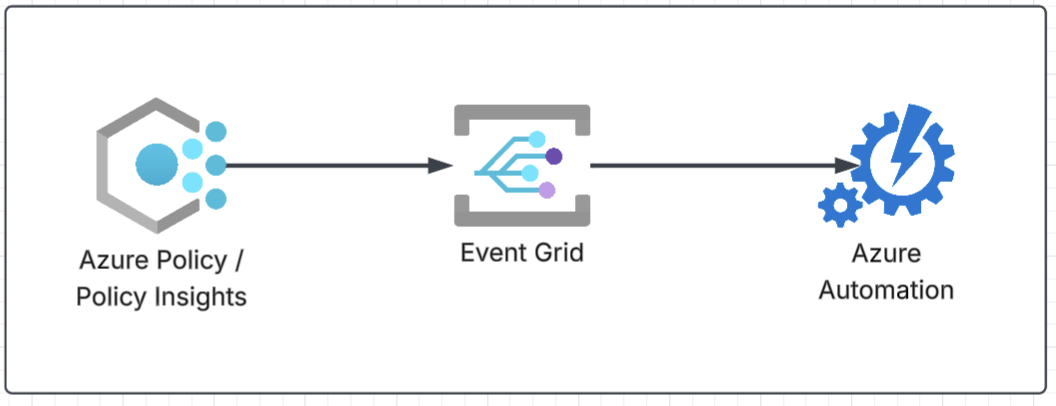
Azure Automation runbooks can be triggered via webhooks, and Event Grid can deliver events to a webhook endpoint. This is the most direct way to connect compliance events to a runbook without writing a Function or Logic App in between.
Pros:
- very small architecture (Event Grid → Runbook)
- easy to explain and quick to demo
- keeps all “governance scripting” inside Automation (job history, reruns, operator familiarity)
Cons:
- inbound security is basically a “secret URL” model (whoever has the URL can trigger it)
- you’ll do more filtering and parsing inside the runbook payload
- fewer options for robust event handling patterns compared to Function/Logic App
Even though this post will focus on the webhook route (because it’s a neat trick and many admins ask about it), my recommendation for production remains: Event Grid → Function. That is usually the best balance of security, control, and maintainability.
Step 1: Azure Policy
In this section we’ll create a simple Audit policy that flags any Resource Group that doesn’t have a CostCenter tag (or has it empty). The policy itself stays intentionally “dumb” — it only detects. The “smart” part (deriving the correct value and tagging) will happen later in Azure Automation.
Step 1.1: Create Custom Policy Definition
Create a new custom policy definition with the following JSON:
1
2
3
4
5
6
7
8
9
10
11
12
13
14
15
16
17
18
19
20
21
22
23
24
25
26
27
28
29
30
31
32
33
34
35
36
37
38
{
  "mode": "All",
  "parameters": {
    "tagName": {
      "type": "String",
      "metadata": {
        "displayName": "Required tag name",
        "description": "Name of the tag that must exist on the resource group."
      },
      "defaultValue": "CostCenter"
    }
  },
  "policyRule": {
    "if": {
      "allOf": [
        {
          "field": "type",
          "equals": "Microsoft.Resources/subscriptions/resourceGroups"
        },
        {
          "anyOf": [
            {
              "field": "[concat('tags[', parameters('tagName'), ']')]",
              "exists": "false"
            },
            {
              "field": "[concat('tags[', parameters('tagName'), ']')]",
              "equals": ""
            }
          ]
        }
      ]
    },
    "then": {
      "effect": "audit"
    }
  }
}
Even though the article focuses on CostCenter, making the tag name a parameter is handy because you can reuse the same policy for other governance tags later (Application, Owner, Environment, etc.) without duplicating definitions.
Step 1.2: Assign the policy
Assign the policy at the scope where you want governance enforced (usually a Management Group or Subscription). For the demo, subscription scope is fine; for real landing zones, management group scope tends to be cleaner.
When assigning, set:
- Tag name: CostCenter (default is already set)
- Exclusions (optional): exclude MG/subscriptions that are “special” (sandbox, break-glass, etc.)
Step 2: Create the Event Grid subscription
At this point you already have the policy assigned and you’re seeing compliance results. Now we want to react when a Resource Group becomes NonCompliant (missing CostCenter). That reaction starts with an Event Grid subscription listening to Policy Insights events.
Step 2.1: Create the Event Grid System TOpic
- Azure portal → Azure Policy
- Go to Events
- Click Add to add System Topic
You’ll land on the Event Grid subscription creation screen.
- Topic Type: Microsoft PolicyInsights
- Scope: As your Policy scope
- Name:
st-policyinsights-CostCenter
Step 2.2: Create an Event Subscription on the System Topic
- Open the newly created Event Grid System Topic (you can click it from the Events blade, or find it in the RG)
- Click + Event Subscription
On the Create event subscription screen:
- Name:
egsub-policyinsights-costcenter - Event schema: Event Grid Schema (recommended for easiest parsing)
- Topic type / Topic name: already preselected (because you’re inside the system topic)
Event Types (what to select)
For policy compliance drift alerting, start with:
Microsoft.PolicyInsights.PolicyStateChangedMicrosoft.PolicyInsights.PolicyStateCreated
Optionally add (later or now):
Microsoft.PolicyInsights.PolicyStateDeleted
Endpoint details (destination)
- Endpoint type: Webhook
- Endpoint: this will be your Azure Automation webhook URL (we’ll generate it in the next step). You can use a temporary HTTPS placeholder (any URL) for now, we can change it later.
Save / Create the event subscription.
Step 2.3 Add filtering
Event Grid filtering is limited compared to filtering in code, but you can still reduce noise.
Two practical suggestions:
- Keep event types limited to policy state created/changed
- If your scope has a lot of policies, don’t try to handle it all with Event Grid filters — do the precise filtering inside the runbook (by policy assignment id) in Step 3
That said, if you know you only want to react to NonCompliant, you can also handle that in the runbook very easily and keep the Event Grid subscription broad.
Step 3: Create Azure Automation Runbook and WebHook
In this step we’ll create a simple runbook that can be triggered by Event Grid via a webhook, and we’ll make it “Event Grid aware”:
- it accepts the Event Grid payload
- it filters to only the events we care about (NonCompliant RGs for this policy assignment)
- it attempts to derive CostCenter from another tag (we’ll use Application as the primary candidate)
- if it can’t derive it, it will log and notify (we’ll keep notification simple and pluggable)
Step 3.1 Decide the “source tag” for mapping
For CostCenter derivation, the best candidate in most Azure admin environments is:
Primary: Application (or AppName) tag
- typically stable
- one-to-many mapping makes sense (many RGs/resources belong to one application, which maps to one cost center)
- usually owned by app teams and can be standardized
Fallback: Owner tag
- useful for escalation (“who do we contact?”)
- not a great mapping key for cost centers (owners change, owners ≠ finance code)
So the runbook logic will be:
- Try Application → map to CostCenter
- If Application is missing or unknown → notify admin (and include Owner if present)
Step 3.2 Create the Automation Account prerequisites
Make sure your Automation Account has:
- A system-assigned managed identity (recommended)
- RBAC so it can tag resource groups
Also ensure the Automation Account has the Az modules available (Az.Accounts, Az.Resources).
Step 3.3 Create the PowerShell runbook
Create a PowerShell runbook (PowerShell 7 is fine) called something like: rbk-SetCostCenterFromPolicyEvent
This runbook will be webhook-triggered, so it must accept the webhook payload in a parameter.
Paste this as your starting point:
1
2
3
4
5
6
7
8
9
10
11
12
13
14
15
16
17
18
19
20
21
22
23
24
25
26
27
28
29
30
31
32
33
34
35
36
37
38
39
40
41
42
43
44
45
46
47
48
49
50
51
52
53
54
55
56
57
58
59
60
61
62
63
64
65
66
67
68
69
70
71
72
73
74
75
76
77
78
79
80
81
82
83
84
85
86
87
88
89
90
91
92
93
94
95
96
97
98
99
100
101
102
103
104
105
106
107
108
109
110
111
112
113
114
115
116
117
118
119
120
121
122
123
124
125
126
127
128
129
130
131
132
133
134
135
136
137
138
139
140
141
142
143
144
145
146
147
148
149
150
151
152
153
154
155
156
157
158
159
160
161
162
163
164
165
166
167
168
169
170
171
172
173
174
175
176
177
178
179
180
181
182
183
184
185
param(
    [Parameter(Mandatory = $false)]
    [object] $WebhookData
)

# ----------------------------
# Configuration (edit to match your environment)
# ----------------------------

# Your tag names
$RequiredTagName = "CostCenter"
$SourceTagName   = "Application"     # primary mapping key
$OwnerTagName    = "Owner"           # used for notifications / context

# IMPORTANT: set this to your specific policy assignment ID (Step 1.2 output)
# Example format: /subscriptions/<subId>/providers/Microsoft.Authorization/policyAssignments/<name>
$TargetPolicyAssignmentId = "<PUT-YOUR-POLICY-ASSIGNMENT-ID-HERE>"

# A simple mapping table (replace with your real mapping source later: Storage, Key Vault, CMDB, etc.)
# Key: Application tag value, Value: CostCenter
$AppToCostCenterMap = @{
    "Payroll"    = "CC-1001"
    "CRM"        = "CC-2040"
    "Intranet"   = "CC-3300"
}

# ----------------------------
# Helper: Write consistent output
# ----------------------------
function Write-Info($msg)  { Write-Output "[INFO] $msg" }
function Write-Warn($msg)  { Write-Warning "[WARN] $msg" }
function Write-Err($msg)   { Write-Error   "[ERR ] $msg" }

# ----------------------------
# Step A: Parse webhook payload
# ----------------------------
if (-not $WebhookData) {
    Write-Err "No WebhookData provided. This runbook is intended to be triggered by webhook."
    return
}

# Automation webhooks pass JSON in WebhookData.RequestBody as string
$rawBody = $WebhookData.RequestBody
if (-not $rawBody) {
    Write-Err "WebhookData.RequestBody is empty."
    return
}

# Event Grid sends an array of events
$events = $null
try {
    $events = $rawBody | ConvertFrom-Json
} catch {
    Write-Err "Failed to parse RequestBody JSON. Error: $($_.Exception.Message)"
    Write-Info "Raw body: $rawBody"
    return
}

if (-not $events) {
    Write-Warn "No events found in payload."
    return
}

Write-Info "Received $($events.Count) event(s)."

# ----------------------------
# Step B: Connect to Azure with Managed Identity
# ----------------------------
try {
    Connect-AzAccount -Identity | Out-Null
    $ctx = Get-AzContext
    Write-Info "Connected as Managed Identity. Tenant: $($ctx.Tenant.Id) Subscription: $($ctx.Subscription.Id)"
} catch {
    Write-Err "Failed to connect using Managed Identity. Error: $($_.Exception.Message)"
    return
}

# ----------------------------
# Step C: Process events
# ----------------------------
foreach ($evt in $events) {

    # Defensive checks
    $eventType = $evt.eventType
    $data      = $evt.data

    # Ignore anything that doesn't look like a Policy Insights event
    if (-not $data -or -not $data.complianceState) {
        Write-Info "Skipping event without Policy Insights data/complianceState. eventType=$eventType"
        continue
    }

    # We only care about NonCompliant
    if ($data.complianceState -ne "NonCompliant") {
        Write-Info "Skipping event (complianceState=$($data.complianceState))."
        continue
    }

    # Filter to our specific policy assignment
    if ($TargetPolicyAssignmentId -and ($data.policyAssignmentId -ne $TargetPolicyAssignmentId)) {
        Write-Info "Skipping event for different policyAssignmentId."
        continue
    }

    # Filter to Resource Groups only
    $resourceId = $data.resourceId
    if (-not $resourceId -or ($resourceId -notmatch "/resourceGroups/")) {
        Write-Info "Skipping non-RG resourceId: $resourceId"
        continue
    }

    Write-Info "Processing NonCompliant RG: $resourceId"

    # Extract RG name + subscription from resourceId
    # /subscriptions/<subId>/resourceGroups/<rgName>
    $subId = ($resourceId -split "/")[2]
    $rgName = ($resourceId -split "/")[4]

    if (-not $subId -or -not $rgName) {
        Write-Warn "Could not parse subscriptionId/resourceGroupName from resourceId: $resourceId"
        continue
    }

    # Ensure context is set to the right subscription (important if you use MG scope)
    try {
        Set-AzContext -SubscriptionId $subId | Out-Null
    } catch {
        Write-Warn "Failed to set context to subscription $subId. Error: $($_.Exception.Message)"
        continue
    }

    # Pull RG and tags
    $rg = $null
    try {
        $rg = Get-AzResourceGroup -Name $rgName -ErrorAction Stop
    } catch {
        Write-Warn "Failed to read RG '$rgName' in subscription '$subId'. Error: $($_.Exception.Message)"
        continue
    }

    $tags = @{}
    if ($rg.Tags) { $tags = $rg.Tags }

    # If CostCenter already exists, do nothing (race conditions happen)
    if ($tags.ContainsKey($RequiredTagName) -and -not [string]::IsNullOrWhiteSpace($tags[$RequiredTagName])) {
        Write-Info "RG already has $RequiredTagName=$($tags[$RequiredTagName]). No action."
        continue
    }

    # Try to infer CostCenter from Application tag
    $app = $null
    if ($tags.ContainsKey($SourceTagName)) { $app = $tags[$SourceTagName] }

    if ([string]::IsNullOrWhiteSpace($app)) {
        $owner = $null
        if ($tags.ContainsKey($OwnerTagName)) { $owner = $tags[$OwnerTagName] }
        Write-Warn "Cannot infer CostCenter: missing '$SourceTagName' tag. Owner='$owner'. RG='$rgName'."
        # TODO: notify admin (Teams/email/ITSM) - we’ll implement in next step
        continue
    }

    if (-not $AppToCostCenterMap.ContainsKey($app)) {
        $owner = $null
        if ($tags.ContainsKey($OwnerTagName)) { $owner = $tags[$OwnerTagName] }
        Write-Warn "Cannot infer CostCenter: unknown $SourceTagName='$app'. Owner='$owner'. RG='$rgName'."
        # TODO: notify admin + capture exception
        continue
    }

    $costCenter = $AppToCostCenterMap[$app]
    Write-Info "Inferred CostCenter='$costCenter' from $SourceTagName='$app'. Applying tag..."

    # Apply tag (merge with existing tags)
    $tags[$RequiredTagName] = $costCenter

    try {
        Set-AzResourceGroup -Name $rgName -Tag $tags -ErrorAction Stop | Out-Null
        Write-Info "Tag applied successfully: $RequiredTagName=$costCenter on RG $rgName"
    } catch {
        Write-Warn "Failed to set tag on RG '$rgName'. Error: $($_.Exception.Message)"
        continue
    }
}

Write-Info "Done."
I would suggest testing this locally first, with sample input.
This sample runbook can:
- parse Event Grid events
- filter to your CostCenter policy assignment
- set the CostCenter tag when it can infer it
- log warnings when it cannot
What it can’t do:
- Notify admins (Teams/email/ITSM)
- Store exceptions
- optionally add a tag like CostCenterStatus=NeedsReview so you can report on it easily
But that is not needed for this demo.
Step 3.4 Create the webhook for the runbook
In the runbook:
- Create Webhook
- Set expiration (don’t do “never” in production)
- Copy the webhook URL (treat it like a secret)
This URL is what Event Grid will call.
Important notes about security:
- Anyone who has the webhook URL can trigger the runbook
- Store it like a credential (Key Vault, secure notes, etc.)
- Plan rotation (webhook expiration is your friend)
Step 3.5 Update Event Grid subscription to point to the webhook
Go back to your Event Grid subscription (Step 2):
- Endpoint type: Webhook
- Paste the Automation webhook URL
- Save
Step 4: Validate end-to-end
To force an event for the demo:
- Pick a resource group that has no CostCenter tag
- Ensure it has an Application tag that exists in your map
- Trigger policy evaluation (or just wait for the next evaluation cycle)
- Watch the runbook job output
Where to look when troubleshooting:
- Event Grid subscription metrics: delivery failures/success
- Automation runbook job history and output logs
Conclusion
Azure Policy is often treated as a “set-and-forget” compliance engine, but it becomes much more valuable when you use it as an event-driven signal. In this example we kept the policy intentionally simple: it only audits Resource Groups missing the CostCenter tag. The real value comes from what happens next. Using compliance state changes to trigger automation that can apply real-world logic, enrich metadata, and escalate exceptions when the answer isn’t obvious.
I also covered the three common implementation options:
- a scheduled Azure Automation runbook that periodically checks tags or policy results (simple, but not event-driven),
- Event Grid → Function (the cleanest and recommended approach for production),
- and the “direct” route using an Azure Automation webhook (minimal architecture and great for demos, but with the tradeoff of a secret-URL trigger model).
If you take one thing from this post, it’s this: you don’t always need to force Azure Policy to be your remediation engine. Let Policy detect and report, and use Event Grid to connect compliance changes to the automation tools you already use. That’s how you move from passive compliance reporting to an environment that can correct drift quickly, and notify the right people when it can’t.
Thanks for sticking till the end. Keep clouding around.
Vukasin Terzic