
Azure Policy is one of those services that feels “quiet” until you need it. Once you have multiple subscriptions, multiple teams, and a steady stream of change, policy becomes the guardrail that keeps the basics true: security posture, governance standards, and operational consistency.
If you’ve ever had a week where someone:
- deployed a storage account with risky settings,
- skipped tags “just for now,”
- or made an exception that nobody tracked,
…then you already know why compliance matters. It’s not about blocking people from doing work. It’s about preventing drift from becoming normal. It is not always possible to enforce settings, but that doesn’t mean that you should not care.
Dashboards vs Alerts
Most teams start by reviewing compliance in dashboards. That works well for planned check-ins and governance routines. But dashboards depend on humans remembering to look.
If something becomes non-compliant at 10:07 AM, a dashboard won’t help you until someone opens it. Alerts change that dynamic. Instead of “we’ll review later,” it becomes “we’ll know when it happens.”
Why we can’t just use Azure Monitor directly
Azure Monitor alerts are built around signals that Azure Monitor can evaluate on its own: metrics, logs (KQL), and a handful of platform events like the Activity Log. Azure Policy compliance doesn’t naturally show up as a “metric I can alert on”, and the compliance view you see in the Azure Policy blade is essentially a state model backed by Policy Insights rather than a stream of alert-ready events.
In other words: Azure Policy is excellent at telling you what is compliant right now, but Azure Monitor needs a signal that answers what changed recently. If your goal is “notify me shortly after a resource becomes non-compliant”, you need a change signal, not just a dashboard.
That change signal lives in Policy Insights (the Microsoft.PolicyInsights resource provider). Policy Insights is the layer that records policy evaluation results and exposes them in a way that tools can query and subscribe to. That’s why most “compliance alerting” solutions start by tapping into Policy Insights rather than trying to alert off the policy dashboard itself.
There are two practical ways to “get to” Policy Insights data:
Query it (polling / reporting)
This is the non-real-time approach. You query Policy Insights / compliance state on a schedule (often via Azure Resource Graph or Policy Insights endpoints) and decide whether to notify. It’s simple, but it’s still polling.Subscribe to compliance change events (event-driven)
This is the near-real-time approach. Policy Insights emits events when compliance states are created/updated/deleted. Those events are exposed through the Azure Event Grid integration, which gives you a clean “something changed” hook. From there, you route the event to your handler (Function or Logic App), write a normalized record into Log Analytics, and let Azure Monitor alert off a KQL query.
So the short version is: Azure Monitor can absolutely alert on policy compliance — but only after we turn policy compliance changes into logs. Policy Insights is the piece that makes that possible, and Event Grid is the mechanism that turns “state” into “events”.
Options for alerting on Azure Policy Compliance
There are a few ways to solve this, depending on what you value most: near real-time detection, minimal moving parts, or low-code operations. Below are three approaches, and the one I’ll build in the next part of the article.
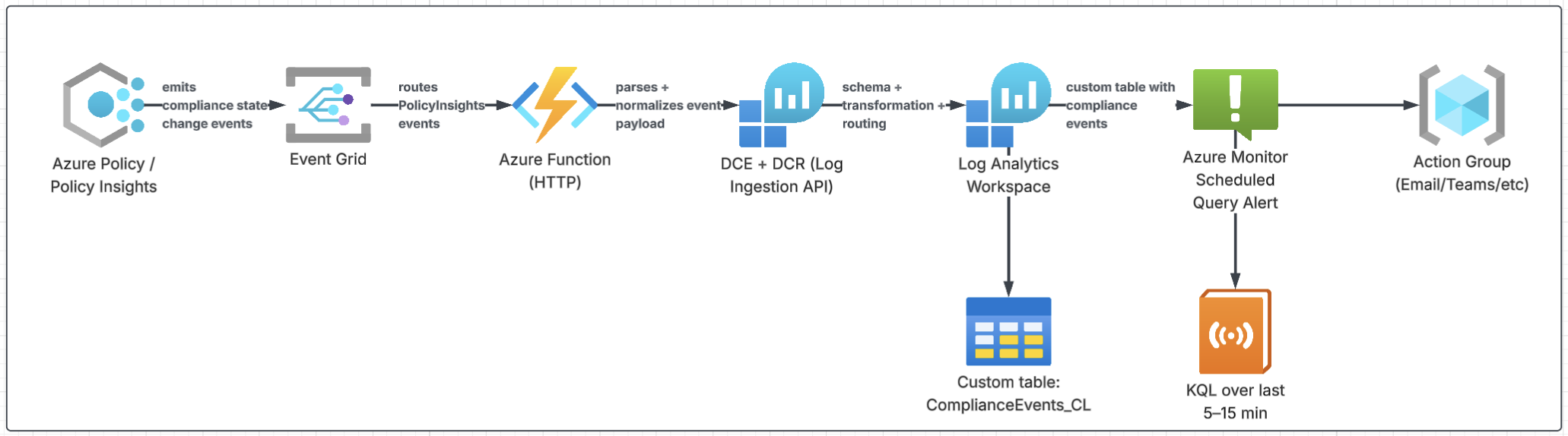
Option 1: Event-driven sending custom data to Log Analytics
PolicyInsights → Event Grid → Azure Function → DCE/DCR → Log Analytics → Alert
This is the near-real-time approach that still feels “Azure-native” and operationally sane. Policy Insights produces compliance change events. Event Grid routes them. A small Azure Function normalizes the payload and sends a clean record through the Log Ingestion API (DCE/DCR) into Log Analytics. From there, Azure Monitor alerts on the KQL results.
It’s the best fit when you want alerts within minutes, want good alert tuning, and want a searchable history for troubleshooting and reporting.
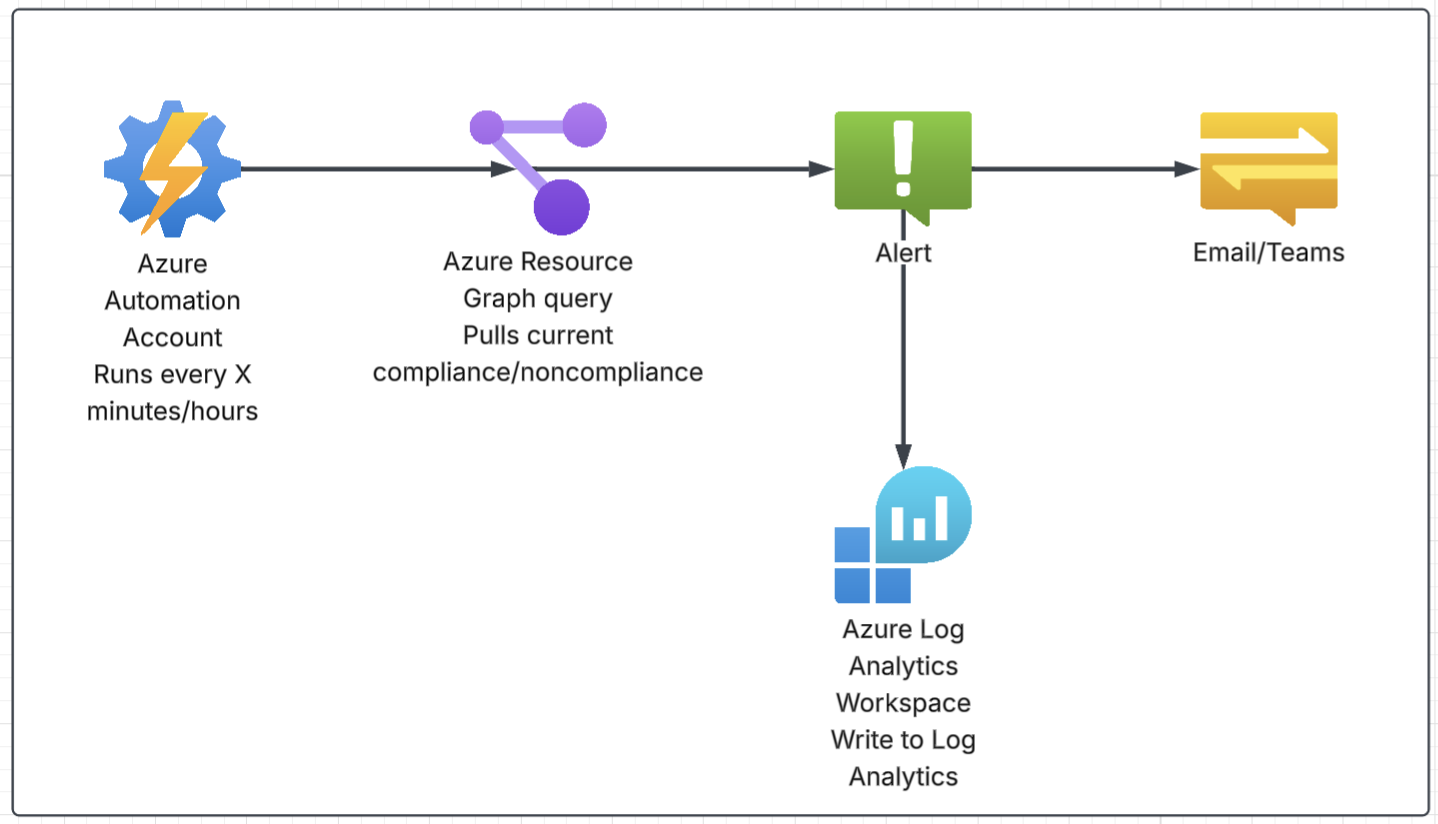
Option 2: Pull information with Azure Resource Graph on a schedule.
Scheduled query/reporting using Azure Resource Graph + automation
This is the lowest-complexity option. Instead of reacting to events, you poll for compliance on a schedule (every 30 minutes, hourly, daily … whatever matches your need). Your automation runs an Azure Resource Graph query (or Policy Insights query), then sends a report or notification. You can also send this to a custom table of Log Analytics and then use Azur Monitor to Alert.
It’s a good fit when “near real time” isn’t a requirement, and you mostly want routine reporting or periodic checks.
This is easy and it has the least number of moving parts.
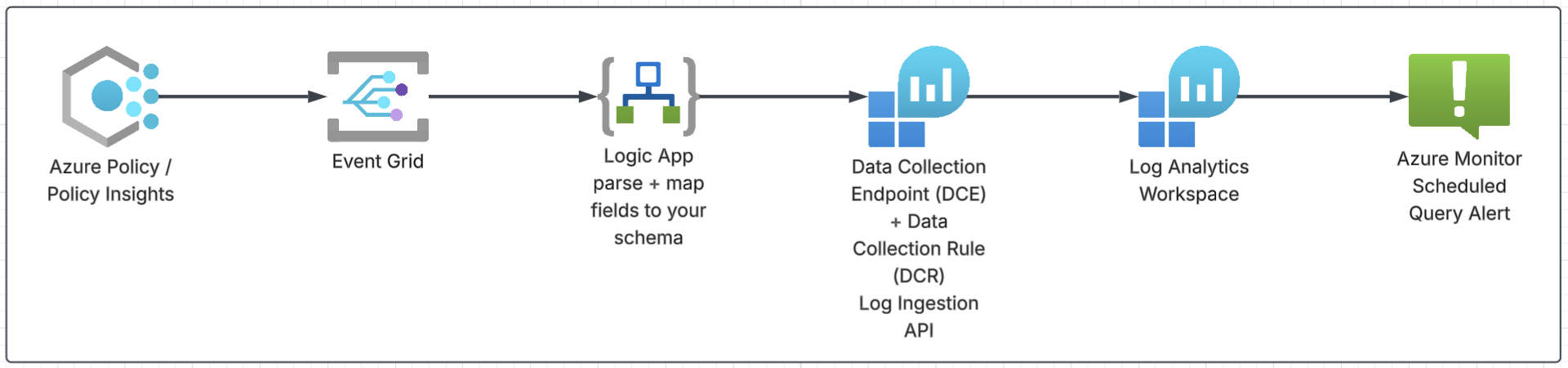
Option 3: Event-driven with Logic App
PolicyInsights → Event Grid → Logic App → DCE/DCR → Log Analytics → Alert
This keeps the event-driven behavior but swaps the Function for a Logic App. Event Grid triggers the workflow, the Logic App maps the event fields into your schema, and then it sends the record to Log Analytics through DCE/DCR. Alerts remain the same: KQL + scheduled query rule.
This is a solid middle ground when you want near real time, but prefer visual workflows over owning code and deployments.
Bottom line
If you want fast alerts, a clean audit trail, and the ability to tune noise using KQL and alert rules, Option 1 is the best fit. If you want the fewest moving parts and can accept delay, Option 2 is hard to beat. You can also go with Option 3 for low code implementation.
In the rest of this article, I’m building Option 1:
PolicyInsights → Event Grid → Azure Function → DCE/DCR → Log Analytics → Alert
…and I’ll keep it practical: a useful policy example, clean ingestion, and alert logic that won’t spam you.
Picking a policy for the walkthrough
To keep this article practical (and quiet on noise), I’m using a built-in policy that’s genuinely useful in many environments:
Audit virtual machines without disaster recovery configured
This policy checks whether Azure VMs have Azure Site Recovery protection configured. It’s not something most admins “notice” in day-to-day operations, and it’s easy for coverage to drift during migrations, rebuilds, or when teams create VMs outside of the normal landing-zone process.
The built-in policy definition ID is:
/providers/Microsoft.Authorization/policyDefinitions/0015ea4d-51ff-4ce3-8d8c-f3f8f0179a56
It uses an auditIfNotExists effect (audit-only behavior), which is perfect for compliance alerting because we’re not blocking deployments — we’re just surfacing drift.
Azure Policy Compliance Monitoring
We’re implementing an event-driven pipeline:
PolicyInsights → Event Grid → Azure Function → DCE/DCR → Log Analytics → Alert
Azure Policy emits state change events through Policy Insights and Event Grid, so we can react to compliance drift without polling.
Prerequisites
You’ll need a few things in place before we start assigning policy and wiring the event pipeline. None of this is exotic, but the permissions matter.
Access / permissions
At minimum, the person deploying this solution should have:
- Policy assignment rights at the target scope (subscription or management group).
Practically: Owner or Resource Policy Contributor at that scope (and the ability to create assignments). - Event Grid deployment rights in the resource group where you create the Event Grid subscription.
Practically: Contributor (or more specific Event Grid roles) on that resource group. Ability to create and configure a Function App (and enable managed identity).
Practically: Contributor on the resource group hosting the Function.- Log Analytics / Azure Monitor permissions to create:
- Log Analytics Workspace (or access an existing one),
- Data Collection Endpoint (DCE),
- Data Collection Rule (DCR),
- and the Scheduled Query Alert + Action Group.
Practically: Contributor on the resource group containing these resources.
Managed Identity (Function App)
The Azure Function should use a system-assigned managed identity (recommended). That identity needs permissions to send data via the Logs Ingestion API:
- Assign the Function’s managed identity the role:
Monitoring Metrics Publisher on DCR, DCE and Log Analytics Workspace. IMPORTANT: Assigning access on Subscription or MG level will not work in this case. It is necessary to assign it on the resource level.
This lets the Function authenticate to https://monitor.azure.com/ and post data to your DCR stream without storing secrets.
Step 1: Assign the built-in policy
You can assign it at a management group, subscription, or resource group scope. For a demo, subscription scope is easiest.
You can do that in Azure Portal, or with this simple PowerShell:
1
2
3
4
5
6
7
8
9
10
11
12
13
14
15
16
17
18
19
20
21
# Variables
$subscriptionId = "<SUBSCRIPTION_ID>"
$scope          = "/subscriptions/$subscriptionId"

# Built-in policy definition ID (Audit VMs without DR configured)
$policyDefinitionId = "/providers/Microsoft.Authorization/policyDefinitions/0015ea4d-51ff-4ce3-8d8c-f3f8f0179a56"
$policyDefinition = Get-AzPolicyDefinition -Id $policyDefinitionId

# Sign in and select subscription
Connect-AzAccount
Set-AzContext -Subscription $subscriptionId

# Create the assignment
$assignmentName = "audit-vm-without-dr"
$assignment = New-AzPolicyAssignment `
  -Name $assignmentName `
  -DisplayName "Audit VMs without disaster recovery configured" `
  -Scope $scope `
  -PolicyDefinition $policyDefinition

$assignment.Id
At this point, Azure Policy will evaluate VMs and mark them compliant/non-compliant based on whether Site Recovery protection exists.
If you want to speed up evaluation for testing, you can trigger a policy scan (note: it’s best-effort and still depends on the platform timing):
1
Start-AzPolicyComplianceScan
Step 2: Create the Log Analytics “landing spot” (DCE/DCR + custom table)
In this solution, the Azure Function will POST compliance events into Log Analytics using the Logs Ingestion API. To make that work, we need three things:
- Log Analytics Workspace (where logs are stored)
- Data Collection Endpoint (DCE) (the ingestion endpoint the Function sends data to)
- Data Collection Rule (DCR) (defines the schema + routes incoming records into a custom table)
We’ll do all of this in the portal.
Goal outcome of Step 2: you end up with a custom table like PolicyComplianceEvents_CL, and you have the DCE endpoint + DCR immutable ID ready for the Function.
I already described the similar process in an older article, so feel free to check it out for more references: Ingesting Custom Data to Azure Log Analytics like a Pro
Step 2.1: Create (or choose) a Log Analytics workspace
If you already have a workspace you use for platform monitoring, you can reuse it.
- Azure portal → Log Analytics workspaces
- Create (or select an existing workspace)
- Pick:
- Subscription
- Resource group
- Region (pick one region and keep it consistent for this demo)
Step 2.2: Create a Data Collection Endpoint (DCE)
- Azure portal → Monitor
- In the left menu, search for / open Data Collection Endpoints
- Create
- Choose:
- Subscription / Resource group
- Region (ideally same region as the workspace)
- Name (example:
dce-policy-compliance-ingest)
- Create
After it’s created:
- Open the DCE resource
- Copy the Logs ingestion endpoint (you’ll use it later in Function App settings)
Step 2.3: Create the custom table (DCR-based) and the DCR
This is the easiest path because the portal creates the custom table and wires it to a DCR.
- Azure portal → Log Analytics workspaces → select your workspace
- Go to Tables
- Click Create → New custom log (Direct Ingest)
- Table name:
- Use:
PolicyComplianceEvents - The workspace will create the actual table as:
PolicyComplianceEvents_CL
- Use:
- Choose Create a new data collection rule
- DCR name:
dcr-policy-compliance-events
- DCR name:
- Select Data Collection Endpoint
- Choose the DCE you created in 2.2
- Schema: add the columns below
Recommended schema for PolicyComplianceEvents_CL
| Column name | Type |
|---|---|
| TimeGenerated | DateTime |
| Timestamp | DateTime |
| EventType | String |
| CorrelationId | String |
| TenantId | GUID |
| SubscriptionId | String |
| ResourceId | String |
| ComplianceState | String |
| PolicyAssignmentId | String |
| PolicyDefinitionId | String |
| PolicyDefinitionReferenceId | String |
This schema is intentionally small. It’s enough to:
- alert on noncompliance,
- scope alerts to one policy assignment/definition,
- group by resource,
- troubleshoot by correlation ID, without turning the custom table into a dump of the full event payload.
Step 2.4: Create a sample file to define the table format (for testing)
The portal wizard usually asks for a sample payload so it can validate the schema mapping. Create a file named:
policy-compliance-event.json
Use this exact JSON (this is the shape your Function will send to the ingestion endpoint — an array of records, each record matching your table schema):
1
2
3
4
5
6
7
8
9
10
11
12
13
14
15
[
  {
    "TimeGenerated": "2025-09-01T19:45:12Z",
    "Timestamp": "2025-09-01T19:45:12Z",
    "EventType": "Microsoft.PolicyInsights.PolicyStateChanged",
    "CorrelationId": "11111111-2222-3333-4444-555555555555",
    "TenantId": "00000000-0000-0000-0000-000000000000",
    "SubscriptionId": "aaaaaaaa-bbbb-cccc-dddd-eeeeeeeeeeee",
    "ResourceId": "/subscriptions/aaaaaaaa-bbbb-cccc-dddd-eeeeeeeeeeee/resourceGroups/rg-demo/providers/Microsoft.Compute/virtualMachines/vm-demo01",
    "ComplianceState": "NonCompliant",
    "PolicyAssignmentId": "/subscriptions/aaaaaaaa-bbbb-cccc-dddd-eeeeeeeeeeee/providers/Microsoft.Authorization/policyAssignments/audit-vm-without-dr",
    "PolicyDefinitionId": "/providers/Microsoft.Authorization/policyDefinitions/0015ea4d-51ff-4ce3-8d8c-f3f8f0179a56",
    "PolicyDefinitionReferenceId": ""
  }
]
Step 2.5: Capture the DCE endpoint and DCR immutable ID
You’ll need these in Step 5 (Function App settings):
Get the DCE logs ingestion endpoint 1. Azure portal → Monitor → Data Collection Endpoints 2. Open your DCE 3. Copy the Logs ingestion endpoint • Example format: https://
Get the DCR immutable ID 1. Azure portal → Monitor → Data Collection Rules 2. Open your DCR (dcr-policy-compliance-events) 3. Open JSON view 4. Search for: immutableId 5. Copy the value (example: dcr-…)
Step 3: Creation Azure Function
Before we can create an Event Grid subscription, we need an endpoint to deliver events to. In this step we’ll create the Function App, enable managed identity, and create a simple HTTP-trigger function that can complete Event Grid’s validation handshake. We’ll keep the function logic minimal for now and add the full ingestion logic later.
We will further update this function in step 5 again.
Step 3.1: Create Function App
- Azure portal → Function App → Create
- Consumption plan is fine for this solution (and a good default for event-driven workloads)
- Basics:
- Name: “fa-azuremonitor”
- Publish: Code
- Runtime stack: PowerShell, version Latest
- Authentication: select System ASsigned Managed Identity
- Leave everything else as defaults or based on your needs
- Create the Function App
Step 3.2: Create the EventGrid-trigger function
To create function, you will need to use some development tools. I suggest using VS Code, and here is a full guide you can follow: Develop Azure Functions by using Visual Studio Code
Essentially, we wan to create a function from EventGrid trigger template called PolicyInsightsEventGrid and deploy it to Azure.
Step 3.3: Add minimal Event Grid Validation support
Add minimal Event Grid validation support (run.ps1)
Event Grid will validate your endpoint by sending a Microsoft.EventGrid.SubscriptionValidationEvent. Your function must respond with validationResponse, otherwise the Event Subscription creation will fail.
Open the function → Code + Test and replace run.ps1 with:
1
2
3
4
5
6
7
8
9
10
11
12
13
14
15
16
17
18
19
20
21
22
23
24
25
26
27
28
29
30
31
32
33
34
using namespace System.Net

param($Request, $TriggerMetadata)

function Write-JsonResponse([int]$StatusCode, $BodyObject) {
    Push-OutputBinding -Name Response -Value ([HttpResponseContext]@{
        StatusCode = $StatusCode
        Headers    = @{ "Content-Type" = "application/json" }
        Body       = ($BodyObject | ConvertTo-Json -Depth 10)
    })
}

$events = $Request.Body
if (-not $events) {
    Write-JsonResponse 400 @{ error = "No request body." }
    return
}

# Event Grid usually sends an array, but handle single objects too
if ($events -isnot [System.Array]) { $events = @($events) }

# Handle Event Grid subscription validation
$validationEvent = $events | Where-Object { $_.eventType -eq "Microsoft.EventGrid.SubscriptionValidationEvent" } | Select-Object -First 1
if ($validationEvent) {
    $validationCode = $validationEvent.data.validationCode
    Write-Host "Event Grid validation requested. Code: $validationCode"

    Write-JsonResponse 200 @{ validationResponse = $validationCode }
    return
}

# Placeholder response (we'll implement ingestion in a later step)
Write-Host "Received $($events.Count) event(s)."
Write-JsonResponse 200 @{ received = $events.Count }
At this point the function is ready for Event Grid validation and it will accept Policy Insights events.
Let’s go ahead and start collecting those in the next step.
Step 4: Subscribe to Policy Insights events with Event Grid (portal, detailed)
At this point we have a place to store events (PolicyComplianceEvents_CL) and a DCR/DCE ready for ingestion. Now we need the “real-time” part: Policy Insights emits compliance state change events, and Event Grid delivers them to our Azure Function. Azure Policy supports Event Grid as an event source specifically for policy state changes.
Policy Insights publishes events when a policy state is created, changed, deleted.
Those show up as Event Grid event types like:
Microsoft.PolicyInsights.PolicyStateCreatedMicrosoft.PolicyInsights.PolicyStateChangedMicrosoft.PolicyInsights.PolicyStateDeleted
The payload contains the fields we care about for alerting, such as complianceState, resourceId, policyAssignmentId, and policyDefinitionId.
Step 4.1: Decide the scope you want to monitor
You can create the subscription at different scopes:
- Management group: best when you want a single subscription that covers many subscriptions.
- Subscription: great for a focused rollout / proof of concept.
- Resource group: usually too narrow for compliance alerting unless you’re testing.
For this article’s demo, subscription scope is simplest.
Step 4.2: Create the Event Grid System TOpic
- Azure portal → Azure Policy
- Go to Events
- Click Add to add Event Subscription
You’ll land on the Event Grid subscription creation screen.
- Topic Type: Microsoft PolicyInsights
- Scope: As decided in Step 4.1
- Name:
st-policyinsights-Subscription
Step 4.3: Create an Event Subscription on the System Topic
- Open the newly created Event Grid System Topic (you can click it from the Events blade, or find it in the RG)
- Click + Event Subscription
On the Create event subscription screen:
- Name:
egsub-policyinsights-to-func - Event schema: Event Grid Schema (recommended for easiest parsing)
- Topic type / Topic name: already preselected (because you’re inside the system topic)
Event Types (what to select)
For policy compliance drift alerting, start with:
Microsoft.PolicyInsights.PolicyStateChanged
Optionally add (later or now):
Microsoft.PolicyInsights.PolicyStateCreatedMicrosoft.PolicyInsights.PolicyStateDeleted
If you want the cleanest initial signal, Changed-only is a good start.
Endpoint details (destination)
- Endpoint type:
- Select:
- subscription / resource group (where the Function App lives)
- Function App
- Function name (the EventGrid-trigger function that handles Event Grid)
Save / Create the event subscription.
Do you remember how we created EventGrid Trigger function earlier? If we created a different type, for example HTTP-Trigger function, we won’t be able to select it here. However, there is a workaround for that as well. We can use Webhook here instead and work with different function or automation types (such as Azure Automation account).
Step 4.4: (Recommended) Add basic filters so you don’t drown in events
Even in a small environment, policy state events can be noisy if you subscribe too broadly. A few practical ways to keep it reasonable:
Filter by scope first
Start at a subscription or a single management group that represents the landing zone you’re targeting.
Filter by event types
As mentioned above, start with just:
PolicyStateChanged
Filter by policy assignment (optional)
If the portal offers advanced filters, you can filter on the data fields (for example, only events that match your specific policyAssignmentId). The exact filter UX varies, but the event schema supports the key fields you’d filter on.
Step 4.5: Validate end-to-end delivery
Once you have the built-in policy assigned (Step 1) and the environment evaluates, Policy Insights will eventually emit events.
To validate quickly:
- Open your Function App → Functions →
PolicyInsightsEventGrid - Go to Monitor
- Look for recent invocations
If events are arriving, you should see log lines like:
- event type (PolicyStateChanged)
- compliance state
- resourceId
- policyAssignmentId
Step 5: Send PolicyInsights events to Log Analytics (Function → DCE/DCR → custom table)
At this point you have two important things working:
- Policy Insights events are flowing into Event Grid (via the System Topic + Event Subscription).
- Your Function is being triggered by those events.
Now we turn those incoming events into logs so Azure Monitor can alert on them. The Function will:
1) take the PolicyInsights event payload, 2) normalize it into your table schema, 3) send it to the Logs Ingestion API endpoint on your DCE/DCR stream.
The Logs Ingestion API is the supported way to push custom data into Log Analytics using a DCR-defined schema.
Step 5.1: Add Function App settings (DCE/DCR details)
Open your Function App → Settings → Environment variables (or Configuration depending on blade) and add:
DCE_ENDPOINT
Example format:https://<dce-name>.<region>.ingest.monitor.azure.comDCR_IMMUTABLE_ID
Example:dcr-xxxxxxxxxxxxxxxxxxxxxxxxxxxxxxxxDCR_STREAM_NAME
Example:Custom-PolicyComplianceEvents_CL
Step 5.2: Grant the Function managed identity permission to ingest
The Function authenticates using its system-assigned managed identity, then posts to the Logs Ingestion API.
In the portal:
- Open the Data Collection Rule you created in Step 2
- Go to Access control (IAM) → Add role assignment
- Assign the Function’s managed identity one of these roles (scope it to the DCR):
- Monitoring Contributor (simple and works well for setup)
You can also do this other way around, go to your Function App, select Identity, and assign the role on your scope from there.
Step 5.3: Update the Event Grid trigger function code
Open your Function → Code + Test → run.ps1 and replace it with this.
This version:
- expects a single Event Grid event per invocation (standard Event Grid trigger behavior),
- extracts the PolicyInsights fields,
- posts an array with one record to your DCR stream.
1
2
3
4
5
6
7
8
9
10
11
12
13
14
15
16
17
18
19
20
21
22
23
24
25
26
27
28
29
30
31
32
33
34
35
36
37
38
39
40
41
42
43
44
45
46
47
48
49
50
51
52
53
54
55
56
57
58
59
60
61
62
63
64
65
66
67
68
69
70
71
72
73
74
75
76
77
78
79
80
81
82
83
84
85
86
87
88
89
90
91
92
93
94
95
96
97
98
99
100
101
102
103
104
105
106
107
108
109
110
111
112
113
114
115
116
117
118
119
120
121
122
123
124
125
126
127
128
129
130
131
132
133
134
135
136
137
138
139
140
141
142
143
144
145
146
147
148
149
param($eventGridEvent, $TriggerMetadata)

# =========================
# Config (App Settings)
# =========================
$dceEndpoint    = $env:DCE_ENDPOINT          # e.g. https://<dce-name>.<region>.ingest.monitor.azure.com
$dcrImmutableId = $env:DCR_IMMUTABLE_ID      # e.g. dcr-xxxxxxxxxxxxxxxxxxxxxxxxxxxxxxxx
$streamName     = $env:DCR_STREAM_NAME       # e.g. Custom-PolicyComplianceEvents

if ([string]::IsNullOrWhiteSpace($streamName)) {
    throw "DCR_STREAM_NAME is empty. Set it in Function App Configuration (e.g. Custom-PolicyComplianceEvents)."
}

# Trim accidental whitespace
$streamName = $streamName.Trim()

$ingestUri = "{0}/dataCollectionRules/{1}/streams/{2}?api-version=2023-01-01" -f `
    $dceEndpoint.TrimEnd('/'), $dcrImmutableId, $streamName

Write-Host "IDENTITY_ENDPOINT: $($env:IDENTITY_ENDPOINT)"
Write-Host "IDENTITY_HEADER set: $([bool]$env:IDENTITY_HEADER)"
Write-Host "MSI_ENDPOINT: $($env:MSI_ENDPOINT)"
Write-Host "MSI_SECRET set: $([bool]$env:MSI_SECRET)"
Write-Host "Stream Name: $streamName"

if (-not $dceEndpoint -or -not $dcrImmutableId -or -not $streamName) {
    throw "Missing app settings. Ensure DCE_ENDPOINT, DCR_IMMUTABLE_ID, and DCR_STREAM_NAME are configured."
}

# =========================
# Only handle PolicyInsights events
# =========================
if (-not $eventGridEvent -or -not $eventGridEvent.eventType) {
    Write-Host "No eventGridEvent or eventType provided by trigger. Exiting."
    return
}

if ($eventGridEvent.eventType -notlike "Microsoft.PolicyInsights.PolicyState*") {
    Write-Host ("Ignoring non-PolicyInsights eventType: {0}" -f $eventGridEvent.eventType)
    return
}

$data = $eventGridEvent.data

# Defensive: some events may not contain expected fields
if (-not $data -or -not $data.resourceId) {
    Write-Host "PolicyInsights event missing data.resourceId. Logging raw event for troubleshooting."
    Write-Host ($eventGridEvent | ConvertTo-Json -Depth 25)
    return
}

# =========================
# Build record matching your custom table schema
# Keep IDs as strings unless your DCR schema explicitly uses GUID columns.
# =========================
$record = [pscustomobject]@{
    Timestamp                   = $eventGridEvent.eventTime
    EventType                   = $eventGridEvent.eventType
    CorrelationId               = $eventGridEvent.id
    TenantId                    = $data.tenantId
    SubscriptionId              = $data.subscriptionId
    ResourceId                  = $data.resourceId
    ComplianceState             = $data.complianceState
    PolicyAssignmentId          = $data.policyAssignmentId
    PolicyDefinitionId          = $data.policyDefinitionId
    PolicyDefinitionReferenceId = $data.policyDefinitionReferenceId
}

# Logs Ingestion API expects JSON array
$bodyJson = @($record) | ConvertTo-Json -Depth 10

# =========================
# Managed Identity token (Azure Functions / App Service)
# Do NOT use IMDS 169.254.169.254 in Functions - it will be refused.
# =========================

function Get-ManagedIdentityToken {
    param(
        [Parameter(Mandatory)] [string] $Resource
    )

    $endpoint = $env:IDENTITY_ENDPOINT
    $header   = $env:IDENTITY_HEADER

    if (-not $endpoint -or -not $header) {
        throw "IDENTITY_ENDPOINT/IDENTITY_HEADER not found. Ensure System Assigned Identity is enabled and restart the Function App."
    }

    # Build URI safely (handles whether endpoint already contains '?' or not)
    $baseUri = [System.Uri]$endpoint
    $sep = if ($endpoint -match '\?') { '&' } else { '?' }

    $apiVersion = "2019-08-01"
    $tokenUri = "$endpoint${sep}resource=$([uri]::EscapeDataString($Resource))&api-version=$apiVersion"

    Write-Host "MI endpoint: $endpoint"
    Write-Host "Token URI: $tokenUri"

    $resp = Invoke-RestMethod -Method GET -Uri $tokenUri -Headers @{
        "X-IDENTITY-HEADER" = $header
        "Metadata"          = "true"
    }

    if (-not $resp.access_token) {
        Write-Host "Token response (no access_token):"
        Write-Host ($resp | ConvertTo-Json -Depth 10)
        throw "Managed Identity token response did not include access_token."
    }

    return $resp.access_token
}

$token = Get-ManagedIdentityToken -Resource "https://monitor.azure.com/"

# =========================
# Ingest into DCE/DCR stream
# =========================

$headers = @{
    "Authorization" = "Bearer $token"
    "Content-Type"  = "application/json"
}

Write-Host ("Ingesting PolicyInsights event")
Write-Host ("  ResourceId:       {0}" -f $record.ResourceId)
Write-Host ("  ComplianceState:  {0}" -f $record.ComplianceState)
Write-Host ("  PolicyDefinition: {0}" -f $record.PolicyDefinitionId)
Write-Host ("  IngestUri:        {0}" -f $ingestUri)

try {
    Invoke-RestMethod -Method POST -Uri $ingestUri -Headers $headers -Body $bodyJson
    Write-Host "Ingestion succeeded."
}
catch {
    Write-Host "Ingestion failed."
    Write-Host $_.Exception.Message
    # Log response body if available
    if ($_.Exception.Response -and $_.Exception.Response.GetResponseStream) {
        try {
            $reader = New-Object System.IO.StreamReader($_.Exception.Response.GetResponseStream())
            $respBody = $reader.ReadToEnd()
            Write-Host "Response body:"
            Write-Host $respBody
        } catch {
            # ignore secondary errors
        }
    }
    throw
}
Step 5.5: Quick validation (does data land in the table?)
Once a policy state change occurs and the Function runs, check Log Analytics:
1
2
PolicyComplianceEvents_CL
| sort by TimeGenerated desc
Step 6: Create the Azure Monitor alert (KQL + Scheduled Query Rule + Action Group)
Now that policy compliance events are landing in Log Analytics (PolicyComplianceEvents_CL), the rest is “normal Azure Monitor”: run a query on a schedule and trigger an action when it returns results.
In this step we will:
- create (or reuse) an Action Group
- create a Scheduled Query Alert that triggers when new noncompliance events appear
- keep it low-noise by grouping per VM
Step 6.1: Create an Action Group
- Azure portal → Monitor
- Alerts → Actions groups
- Create
- Basics:
- Subscription / Resource group
- Action group name:
ag-policy-compliance - Display name:
PolicyCompliance
- Notifications:
- Add what you want (Email, SMS, Teams webhook, etc.)
- Review + create
Tip: If this is a shared platform solution, create one Action Group for the platform team and reuse it across alerts.
Step 6.2: Write the KQL query (target this specific policy)
We’re using the built-in policy:
Audit virtual machines without disaster recovery configured
Policy Definition ID:
/providers/Microsoft.Authorization/policyDefinitions/0015ea4d-51ff-4ce3-8d8c-f3f8f0179a56
Start with a query that looks for new NonCompliant events in a short window.
Query (low-noise, one row per VM)
1
2
3
4
5
6
7
let TargetPolicyDefinitionId = "/providers/Microsoft.Authorization/policyDefinitions/0015ea4d-51ff-4ce3-8d8c-f3f8f0179a56";
PolicyComplianceEvents_CL
| where TimeGenerated > ago(10m)
| where PolicyDefinitionId == TargetPolicyDefinitionId
| where ComplianceState == "NonCompliant"
| summarize LatestEvent=max(Timestamp) by ResourceId, PolicyAssignmentId, PolicyDefinitionId
| sort by LatestEvent desc
Why this query shape:
- The ago(10m) window matches a typical alert frequency.
- summarize prevents multiple events for the same VM from spamming you.
- We keep ResourceId in the result so the alert output is immediately actionable.
Step 6.3: Create the Scheduled Query Rule
- Azure portal → Monitor
- Alerts → Alert rules
- Create → Alert rule
Scope should be the Log Analytics workspace where PolicyComplianceEvents_CL exists.
Condition:
- Signal type: Logs
- Paste the KQL query from 6.2
- Set:
- Measure: Table rows (or “Number of results” depending on UI)
- Operator: Greater than - Threshold: 0
Evaluation:
- Frequency of evaluation: 5 minutes
- Lookback period: 10 minutes
(These should align with the query’s ago(10m) window.)
Actions:
- Select your Action Group: ag-policy-compliance
Details:
- Name: Alert - VM without DR configured
- Severity: choose what makes sense (often Sev 2 or Sev 3)
- Resource group: your monitoring RG
Create the alert.
⸻
Step 6.4 Make the alert output useful
In the alert rule, if you have the option for alert logic like “split by dimensions” (varies by portal experience), the simplest approach is to keep the query already grouped (via summarize) and let the alert fire once when any rows exist.
If you want the notification to include which VMs are affected, keep the query returning ResourceId. Most action handlers will include query results in the alert payload.
And that’s it! If you stayed until the end, congratulations, you now have alerts on Azure Policy compliance.
Conclusion
Azure Policy is great at defining guardrails, but “having a guardrail” isn’t the same as “knowing when someone hit it.” If you only rely on dashboards, compliance drift can sit quietly in the environment until the next review cycle. And by then, it’s usually already an operational problem.
In this article we turned Policy compliance state changes into an alertable signal by using an event-driven path:
PolicyInsights → Event Grid → Azure Function → DCE/DCR → Log Analytics → Alert
That approach gives you a few practical wins:
- near real-time visibility when something becomes NonCompliant,
- a searchable history in Log Analytics (useful for troubleshooting and reporting),
- and alerting that’s easy to tune with KQL (so you can avoid noise and focus on what matters).
From here, the next improvements are mostly about maturity, not architecture: tightening filters (by assignment/scope), adding suppression and dedupe rules, creating a “compliance restored” alert, and packaging everything as IaC so you can roll it out consistently across landing zones.
Thanks reading and keep clouding around.
Vukasin Terzic